WordPress – Debug frontend changes and cache issues
Problem to Solve
When developing or debugging a WordPress site, newly written code does not take effect immediately, even though the files have been updated correctly.
This often leads to confusion during local development or debugging sessions.
Context / Keywords
- WordPress
- Browser cache
- Disable cache
Typical Symptoms
- JavaScript changes do not apply after refresh
- CSS updates are not reflected
- No console errors, but behavior is unchanged
Debugging Solution (Immediate)
Disable Browser Cache in DevTools
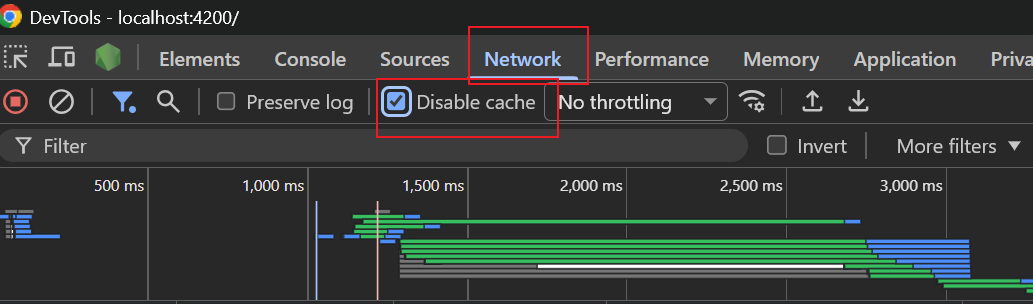
When Chrome DevTools is open:
- Open DevTools
- Go to Network
- Enable Disable cache
- Refresh the page
⚠️ This only works while DevTools is open.
This forces the browser to re-fetch all assets on every reload.
Root Cause Analysis
This is not a WordPress bug.
The real reason is browser-side caching, which is designed to improve performance but interferes with development and debugging.
What is cached?
- JavaScript files
- CSS files
- REST API responses
- AJAX GET requests
If the file URL does not change, the browser assumes the content is unchanged.
Why This Fix Works
With Disable cache enabled:
- The browser skips all cached resources
- Every JS / CSS file is requested again
- The latest code is executed
This reflects the true current state of your code.